
Navigate to 'Collections' using the left hand navigation. Once here, you can create a new collection using the '+ Add a Collection' button in the top right, or edit an existing collection by selecting the desired collection from the list below.
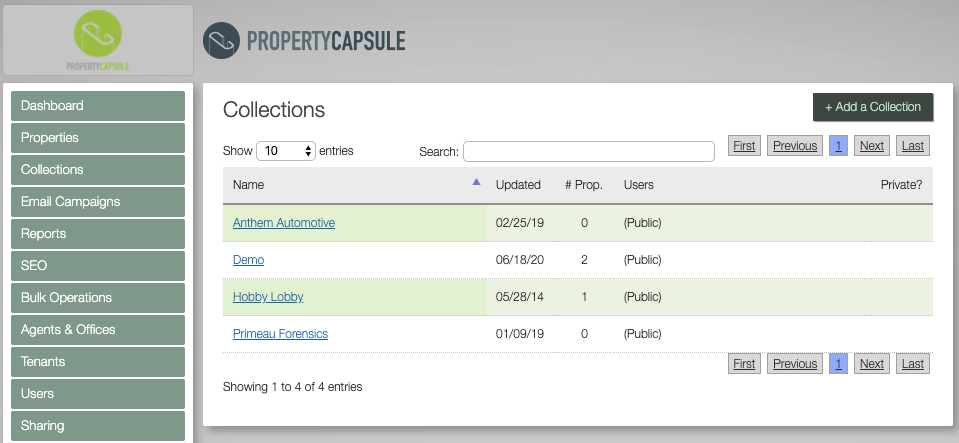
If creating a new collection, first assign it a name and click 'Save'.
Once created, you will be taken to the Edit Collection screen. The follow steps are the same when creating or editing your collection.
--------------------------
User Field : Indicates which users will have access to the collection. Adding specific users to the collection will give only those users access to the collection.
IMPORTANT NOTE : Leaving the user field blank will make the collection available to anyone who signs into the iPad.
Search Filter : The list of filters to apply to your portfolio, to designate a specific group of properties to add to the collection. The list of properties in the center column is dynamic and will update according to applied filters.
Current Selection : Select the desired properties to add to "Properties in Collection" and click "Add to List >>" at the bottom when you are finished. Select the desired properties to add to "Properties in Collection" and click "Add to List >>" at the bottom when you are finished.
IMPORTANT NOTE : Using the 'Include All' option will make your collection dynamic. Your collection will stay up-to-date as properties enter/leave your portfolio that match the selected filters.
Properties in Collection : A list of all the properties that you have added to a collection will appear here. You are able to add or delete properties. Adding more properties will result in a new collection id being made. If you would like to make edits such as adding or deleting properties to the existing collection, click on the pencil icon.
Comments
0 comments
Please sign in to leave a comment.