
Navigate to 'Bulk Operations' using the left hand navigation. Once here, you can export or import your property, space, agent and demographic data using the 'Data Import' and 'Data Export' options.
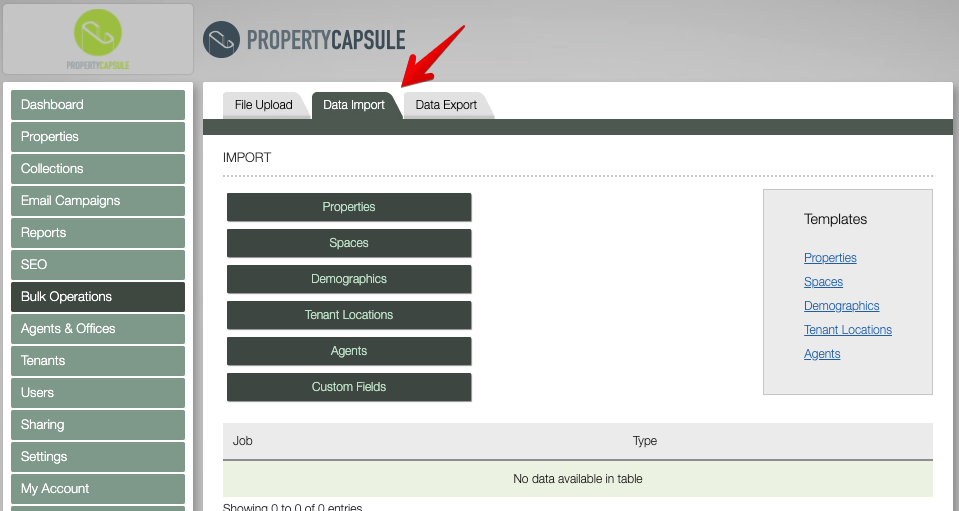
Data Import
IMPORTANT NOTE : Only .CSV files are acceptable for import.
IMPORTANT NOTE : Doing a bulk export first will provide the exact spreadsheet layout the data needs to be in for import - eliminating any guess work!
Data import feature allows for multiple data points to be created or updated across your portfolio at the same time. The four main sets of data allowed for bulk import are Properties, Spaces, Demographics, Agents. Custom Fields may show if you have had any unique fields created at the property level.
On the left hand side, these buttons allow you to choose files in your computer that are available for import. Once you click a file preset and upload the file from your computer, it will populate the data for review.
Once in Review you can choose to import one or all entries, and will be asked to match the header rows from your spreadsheet to the corresponding data points to be updated. Not all columns in your spreadsheet need to be matched - unmatched columns will be skipped in import.
On the right hand side, there are templates that provide basic headers as to what information is needed, in .CSV format.
Data Export
Select the data type that you would like to export from PropertyCapsule in the dropdown menu.
These files will be exported in .csv format.
Comments
0 comments
Please sign in to leave a comment.