
Navigate to 'Properties' using the left hand navigation and select the property you with to edit in the property list. Once in the desired property record, select the 'Plans' tab in the folder navigation. Once there select '+ Create a New Plan'.
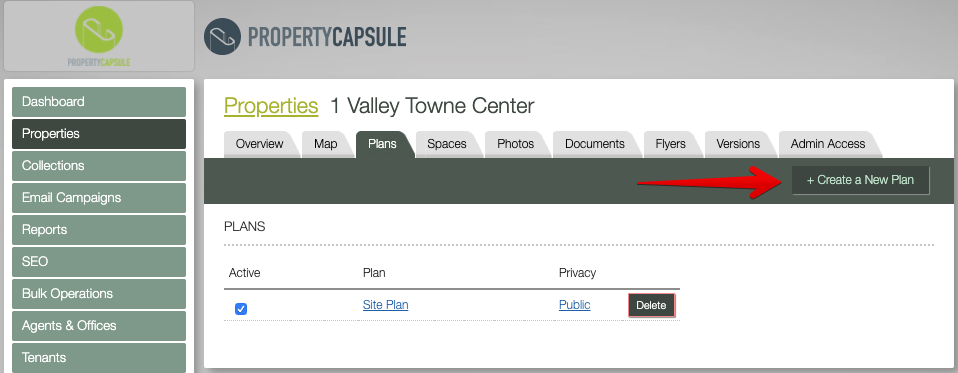
You may upload a base site plan to work with. It is recommended to use .EPS or .PDF file formats.
Enter an appropriate name, click on "Choose File", select the desired site plan, and then "Save".
-------------------------
Replacing the Site Plan Base Layer
To edit a site plan, navigate to the "Plans" tab and select the desired plan you wish to edit.
Click on "Base Image" located to the left, under the "Plans" tab. Here you can rename and replace the base site plan layer.
-------------------------
Editing the Interactive Layer
To edit a site plan, navigate to the "Plans" tab and select the desired plan you wish to edit.
Click on "Open Editor" located slightly under the "Plans" tab to make edits to the interactive site plan.
The following options are available in the Open Editor :
Draw New Space (Manual)
After clicking the "Draw New Space (Manual) button, click on a point on each corner of a space.
You will notice the white dots that mark your clicks.
To reposition your space outline points, click and drag to the desired dot.
For selection refinement, observe the "+" symbol in between your marked points. These points can be activated to pull and adjust your alignments while the connecting dots will remain anchored.
By manually drawing in your spaces, you can make your spaces customized to any wall design.
To delete a point, double click the dot marking point and click "OK" to confirm deletion of the space outline.
Note: You must click the dots in either a clockwise or counter-clockwise direction. Not doing so will distort the shape of the space.
Draw New Space (Automatic)
After clicking the "Draw New Space (Automatic)" button, simply click anywhere into the white space of an enclosed area.
Our software will conform to the sides of the inside space. The space needs to be distinctly defined on the base layer of the site plan.
Note: If the outline of a space is not completely enclosed, our software will combine spaces until it finds an enclosed space. Be aware of the outlines and make sure that they connect.
Place Text
To place a text, click on a location on the site plan to place the text. Edit as needed.
Space Display Options
- Draw call-out line for space number: Draws a line between your space indicator and the space it belongs to.
- Re-center space number: Centers the space number in the middle of the space.
- Font Size: Controls the size font to be used if space will be presented with text or space number.
- Angle: Alters the angle of which the text will be displayed.
- Vertical Characters: Vertically aligns text in a single column.
Comments
0 comments
Please sign in to leave a comment.