
Navigate to 'Properties' using the left hand navigation and select the property you with to edit in the property list. Once in the desired property record, select the 'Photos' tab in the folder navigation.
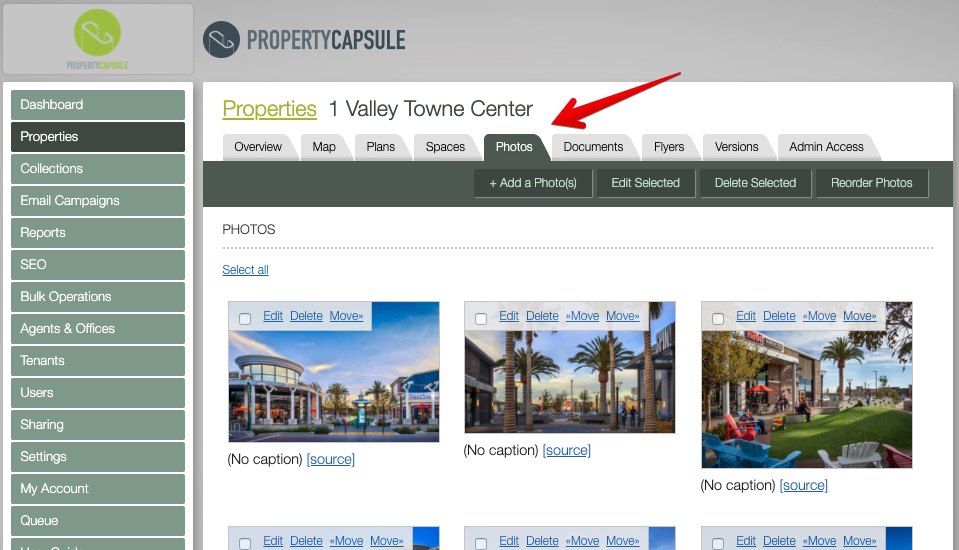
Click on '+ Add a Photo(s)' to add as many photos as you wish. You may upload as many photos as you wish.
Note: The photos must be under 100 MBs in order to be uploaded. Please export your photos to a different format, preferably .JPG or .PNG if applicable.
IMPORTANT NOTE : The first listed photo will show as the default picture for your stock flyer.
Rearranging Photos
By default, your first position image will be displayed on your home screen app as well as be your featured image displayed on the property flyer.
Select "Reorder Photos" and then drag and drop them to change their order, or use the “Move>>” buttons on the main photo homepage.
Editing Photos
Click on "Edit" on a photo to edit.
Focal Point
Crosshair focal point: Positioning the focal point crosshair sets the focus of the photo. This ensures that regardless of the image transformation, the focus point is never lost.
Comments
0 comments
Please sign in to leave a comment.