
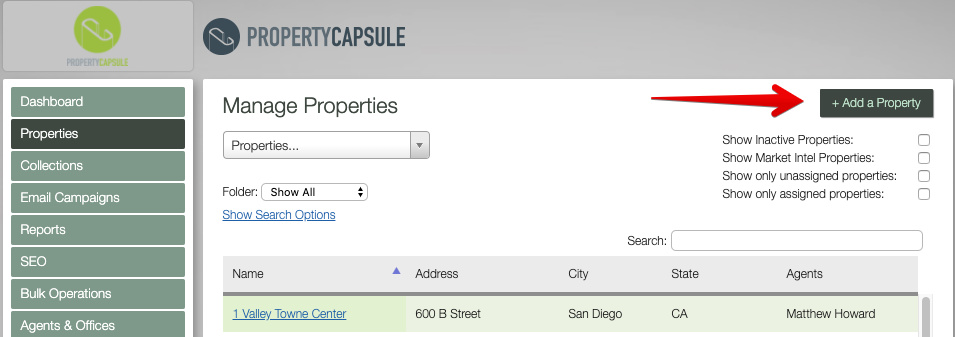
Navigate to 'Properties' using the left hand navigation and click '+ Add a Property' in the top right of the screen.
Once in the property creation screen, you will be presented will a variety of data points. The required fields are marked by an *
-------------------------
Active (Y/N) *
- Checked: The property will show on the website, even if there are no availabilities.
- Unchecked: To hide the property from the website, such as not being finished setting it up, or it is a test property, or no longer represent the property and want to keep it (vs. delete it).
Property Name * - Name as desired for display on website and flyer.
Property Type - Indicate the type of property you would like the space to be indicated as. Examples include: Land, Retail, Shopping Center, etca
Secondary Property Type - Predetermined values that are used for reporting use only at this time. They do not surface outside of the admin.
Address *
City *
State *
Zip
County
- Yes: “Shelby”
- No: “AL:Shelby”
- No: “Shelby County”
Transaction Type - Lease/ Sale / Lease or Sale. **Easy to miss/forget
GLA (Gross Leasable Area) - Enter the numerical GLA for the property
Acres - The acreage (when known) of the entire property parcel, whether it is Land or a developed shopping center.
External Property Website URL - In cases where the property has its own website and you want to share that url with the listing, you may input that URL here.
Notes - This is for an INTERNAL note about this property. Only seen by the dashboard users and administrators.
Internal Identifier - This is for your own use in uniquely identifying the property.
Market - Indicate the property market or metro areas.
Locality / Intersection - Displayed prominently on the website under the property name. (Ex. Located on the corner of 4th and K Street)
Year Built
Year Renovated
Parking Spaces - Enter a numerical value, not a yes/no
Land Owner
# of Units
Overview - When pasting, use the “Paste from Word” button - This option cleans up the underlying HTML
Remember to check your spelling and grammar :) This is the main advertising copy - make nice use of it! Add information from your flyer that is not covered in the provided fields.
Featured (Y/N) - This field can be utilized if you have a custom website integration, where featured properties can be filtered to the top of your portfolio list.
Available SF override - This replaces the list of available sqft in the search results.
Max Contiguous - The largest amount of continuous sqft available.
Min divisible SF - For use when you have a space that can be split into smaller units.
Agents - If the agent is not in this list, you will want to add the agent using the “Agents & Offices” menu first. This dropdown displays all agents currently entered in the system.
Optional: Supply text for agent role such as “Primary Listing Broker”, etc. as desired by the agent (will default to “Contact” if left blank).
Demographics - Supply the demographics for the provided fields that you want showcased on the web and flyer. (No need to enter all rows. Rows with no data will be hidden from display).
-------------------------
When finished adding/editing, remember to use the “Save” button at the bottom of the form.
Comments
0 comments
Article is closed for comments.