
Navigate to 'Properties' using the left hand navigation and select the property you with to edit in the property list. Once in the desired property record, select the 'Documents' tab in the folder navigation.
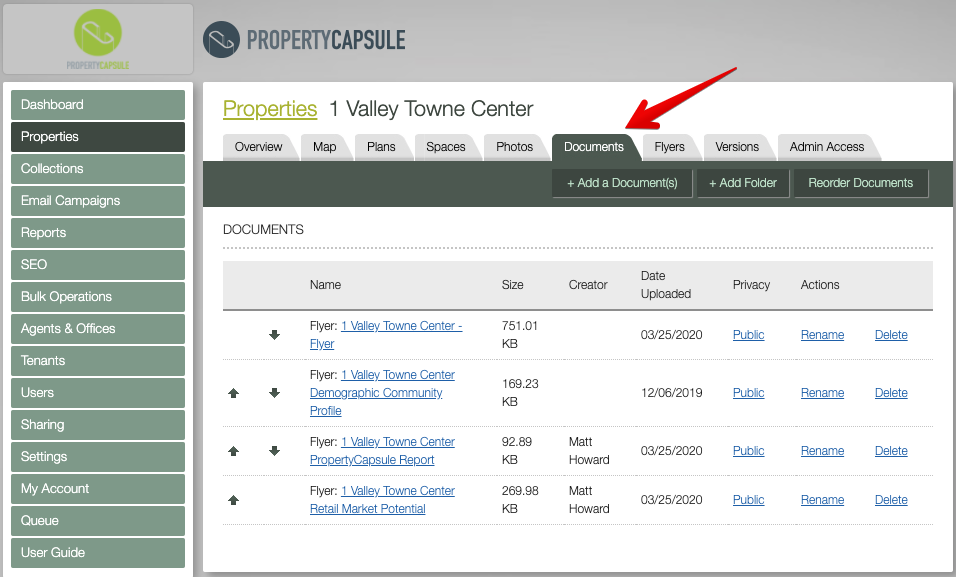
Click the '+ Add a Document' button on the top right corner.
Then click the '+ Add Files' button and you may start uploading your documents.
When finished, click the 'Upload Documents' button.
The order of documents uploaded will be the order in which they appear in the documents section of the property listing page. Reorder by clicking the arrows, or 'Reorder Documents' tab.
Privacy
You can also change the document's privacy, for either public or private use.
To change the privacy, click the link under the privacy column in the 'Documents' tab.
Here you can select/deselect the 'Private?' checkbox and choose corresponding users. Private documents will be viewable only from admin. Assigning users to a document will allow only the assigned users to view the document, and only on the iPad application. (See Section 9 for more details on Users.)
Note : You can also utilize the "+ Add Folder" feature to organize your documents by folders.
Comments
0 comments
Please sign in to leave a comment.